

Believe it or not, I have authored about 35+ papers in econometrics, finance and a few machine learning/deep learning ones. It’s not something I intended to do—I was happily doing quantitative freelance work but most of my clients kept asking for an accompanying report, which turned into co-authoring dissertations, which turned into ghost writing academic papers. At first I had moral qualms about it, but they paid well and I needed the money, so I wrote them. My typical client was often an immigrant in Europe or the US who was juggling school and work, and didn’t have enough time or the know-how required for the work. I’ve learnt a few tricks of the trade and since I often see people on reddit having the absolute worst time writing papers, I thought I’d put this out there incase it helps someone. So here is the step-by-step guide to make writing technical papers a breeze.
Requirements
Typing Speed
The first thing you need is a fast typing speed. If you type slowly and have to look at the keyboard as you type, writing a 10,000-30,000 word paper is going to be slow and difficult. I therefore suggest you take some time to play around with a typing tutor. You just need a few days to get fairly good.
An easy-to-type-on keyboard
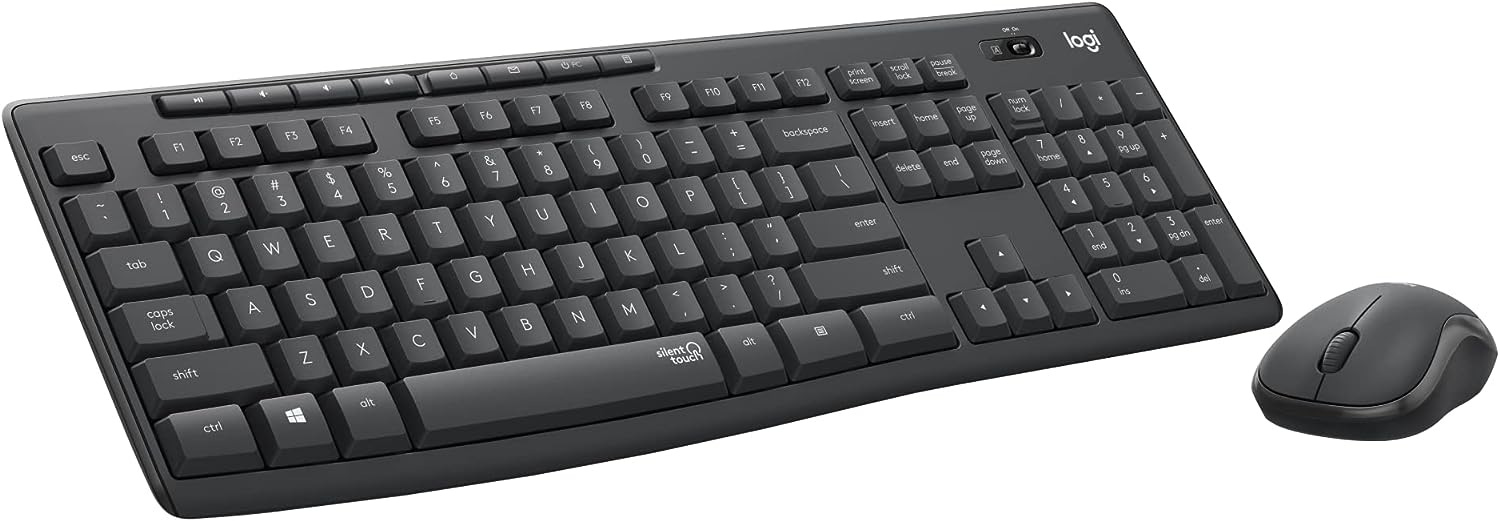
The best keyboard I have found for typing is the Logitech MK295 silent keyboard. Its keys are very quick and comfortable on the fingers, and it is a full keyboard—the kind that has a number pad.

If you get this keyboard, it comes with a mouse and you can use the Logitech Options+ software to increase the mouse’s speed which also helps.
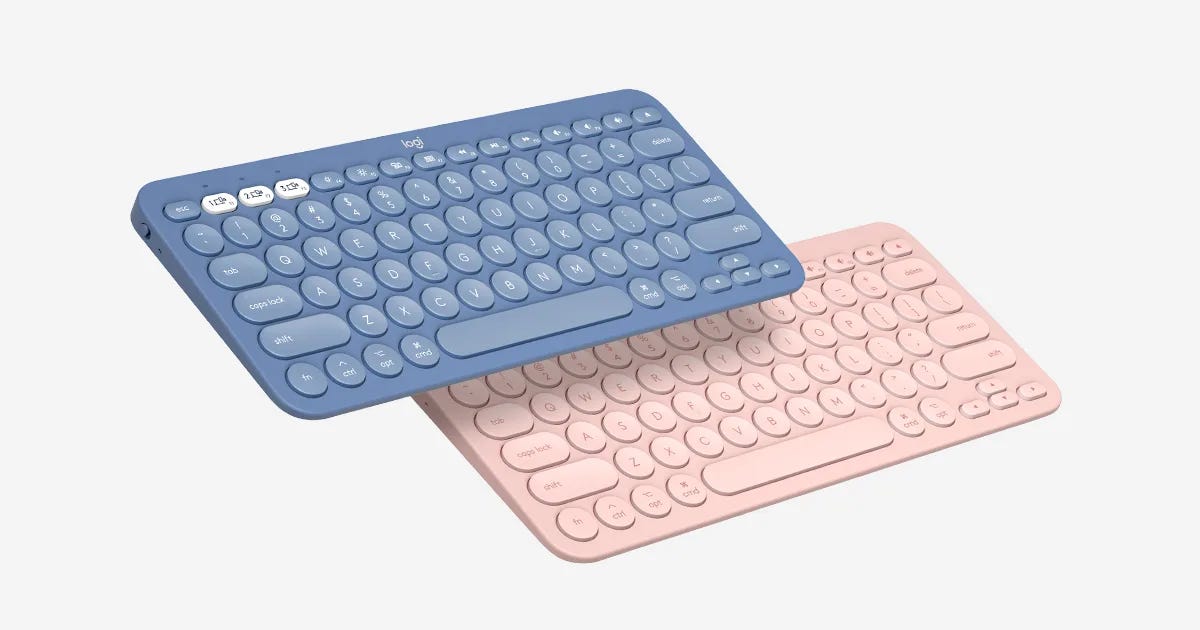
An honorable mention is the Logitech K380. It has round keys that are spaced apart, but the keys are a bit harder to type on, especially if you intend to work for long hours. But it has a very distinct tactile feel that is quite enjoyable. I’m sure there are others out there which are equally good, just find one you like.

Optional: A tablet
There’s a lot of reading required for technical writing. A tablet helps a lot because you can pull it up anywhere you go and read a bit when you find some time in between other things during the day. It’s also quite exhausting to sit at a computer to read.
If you do decide to get one, go for one with a pen. My recommendation would be a Samsung Galaxy S6 mini. I find it to be the perfect size for reading, and it has a good S-pen. Plus you can get a keyboard for it too if you need one. A better tablet is the Samsung Galaxy S9, or an Ipad (the one with a pen). Samsung tablets are great because of S-notes which is awesome for note-taking, but you can also just use OneNote. OneNote is great for reading very mathematical work because you can basically paste the entire pdf as a ‘screenshot’ into a OneNote doc and then take notes as you read along. That really makes the process of reading mathematical work enjoyable.
Other software you might need are notion, dropbox/google drive, and a pdf reader.
Optional: At least a 2k monitor.
Text looks bad on most monitors under 2k resolution. I have a hard time writing on a 1080p monitor because of how jagged the text looks. The best size for a 2k monitor (for text work) is 24inch/25inch. Text also looks bad on a 27-inch 2k monitor because 27-inch 2k resolution is basically 1920x1200 on a smaller monitor.
A comfortable chair. Gotta watch out for your back.
Writing software
MS Word is the best there is, however, if you need to write in LaTeX or markdown, you will need a suitable editor. I prefer OneLeaf for LaTeX and Typora for markdown. You can export markdown to word or pdf using Typora. Most people who write their papers or books in LaTeX have trouble formatting the document. OneLeaf helps a lot with that; you can create a format for your document before you start. If you don’t know how to format your document, just ask ChatGPT to create a format for you.
A citation manager
I prefer Zotero since it has a connector for most browsers which you can use to download your citations directly to Zotero, and it has a Word and Libre Office plugin which you can use to cite and add a bibliography. Here is a good tutorial on how to use Zotero to write literature reviews.
Dropbox
To make it easy to get through all the papers you need to read, you can use Dropbox because it syncs all your documents across your devices. You can copy the pdfs from your Zotero to Dropbox, read them and then copy them back to Zotero when you are done.
Optional: Obsidian.
There is an Zotero-to-Obsidian plugin which I find very handy to synthesize your notes. It can extract the highlights and notes from your PDFs into Obsidian notes. In Obsidian, you can open up all your notes and then quickly peruse them when you need the info and put together your thoughts. Since Zotero notes are in markdown, you can open the markdown with all your thoughts in Typora and export to word. This speeds up the process of reading, annotating and compiling notes. I will create and share an Obsidian template for this later on.
Step 1: Format Your Manuscript
Once you have everything set up, the first thing you are going to want to do is format your document. If you are using MS Word. Start by specifying the font, font size and font color for each of the different styles of text (Normal, Heading 1, Heading 2, … Caption).

To do this, simply right-click on a style and then click ‘Modify’, then specify the properties of the style.
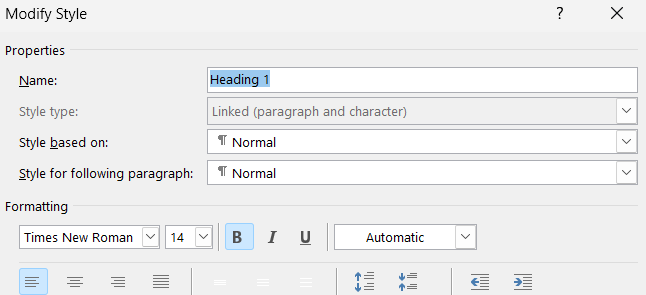
If your document requires numbered Chapters and sub-chapters, you can set that up at the onset. To do this click on the numbers icon in the paragraphs tab as shown below.
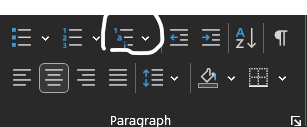
Then click on ‘Define New Multilevel List’, which should open up a panel as shown below.
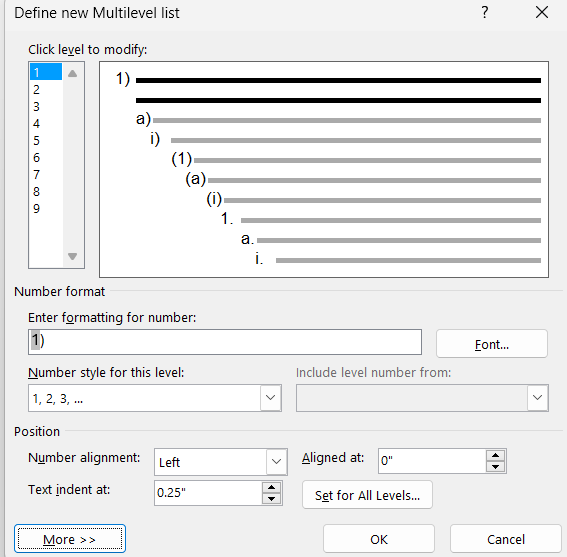
Click on ‘More’ to open up all the options.
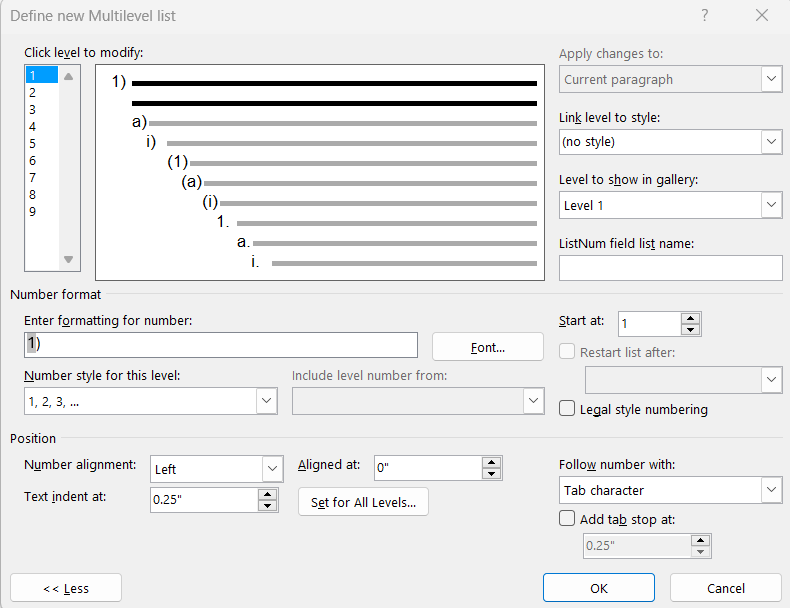
You can set the ‘Text indent at’ to 0 and click ‘Set for All Levels’ so that your numbers start at the margin of the document, but you can set it to your liking.
‘Follow number with’ specifying what comes after your number: a tab space, a space or nothing.
The most important part is the ‘Link level to style’ which specifies what the number or letter is linked to. Typically, you want 1, i for Heading 1 (Chapters), 2, ii or a for Heading 2 and so on. Once you are done click ‘OK’.
Finally, write out all your Chapter headings and sub-headings. This helps map out the lay of the land, and you can then focus on one small part each day. You do not have to start from chapter one. If you are writing a book, you can start on any chapter work on different chapters without getting lost or confused.
Step 2: Set Up Your Citation Style
As I said, Zotero comes with a word plugin that you can use to insert citations and add a bibliography.

What you want to do is click on ‘Document Preferences’ and choose the citation style you want to use.
Step 3: Read
There’s going to be a lot of reading. The quickest way to find papers is to search for them on Google Scholar. Once you find a paper you need, open the link and then import them to Zotero using your browser’s Zotero connector. Here’s an example of that process.

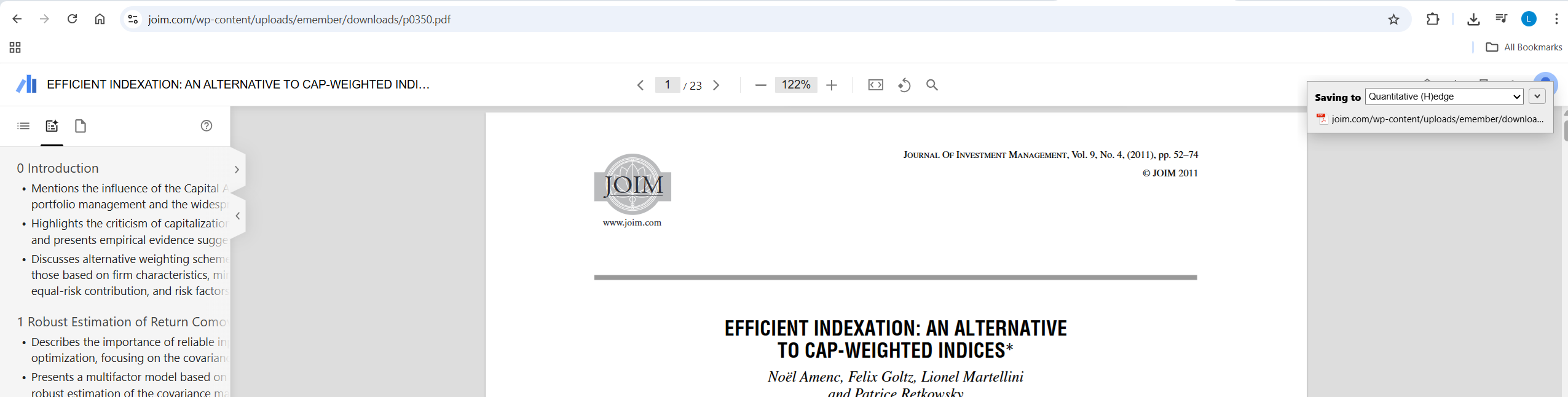
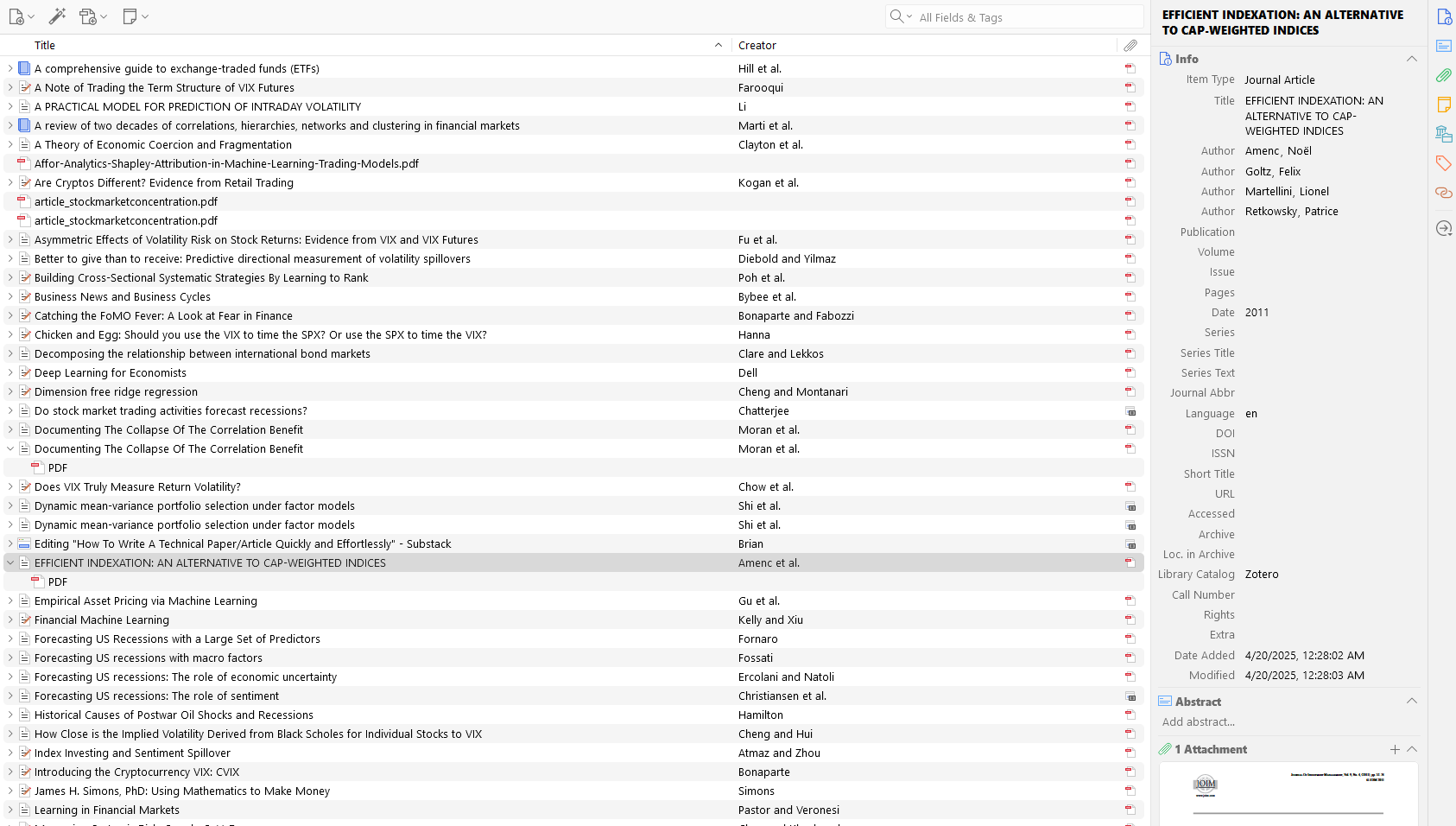
You can then copy the pdf to Dropbox to read and annotate on the go, then copy it back when you are done. You can also just read it and annotate it directly on Zotero.
Step 4: Synthesize Your Research
Once you’ve read a bunch of papers and articles, and you have some thoughts you need to note down, you need to synthesize your research. I use Obsidian for this. It’s quite a process to setup Obsidian to link to your Zotero, but I will share a ready-made template for this.
Say you have an annotation as shown below.

In Obsidian, you can type the hotkey ‘Alt’ + ‘X’ to import the annotations from Zotero.
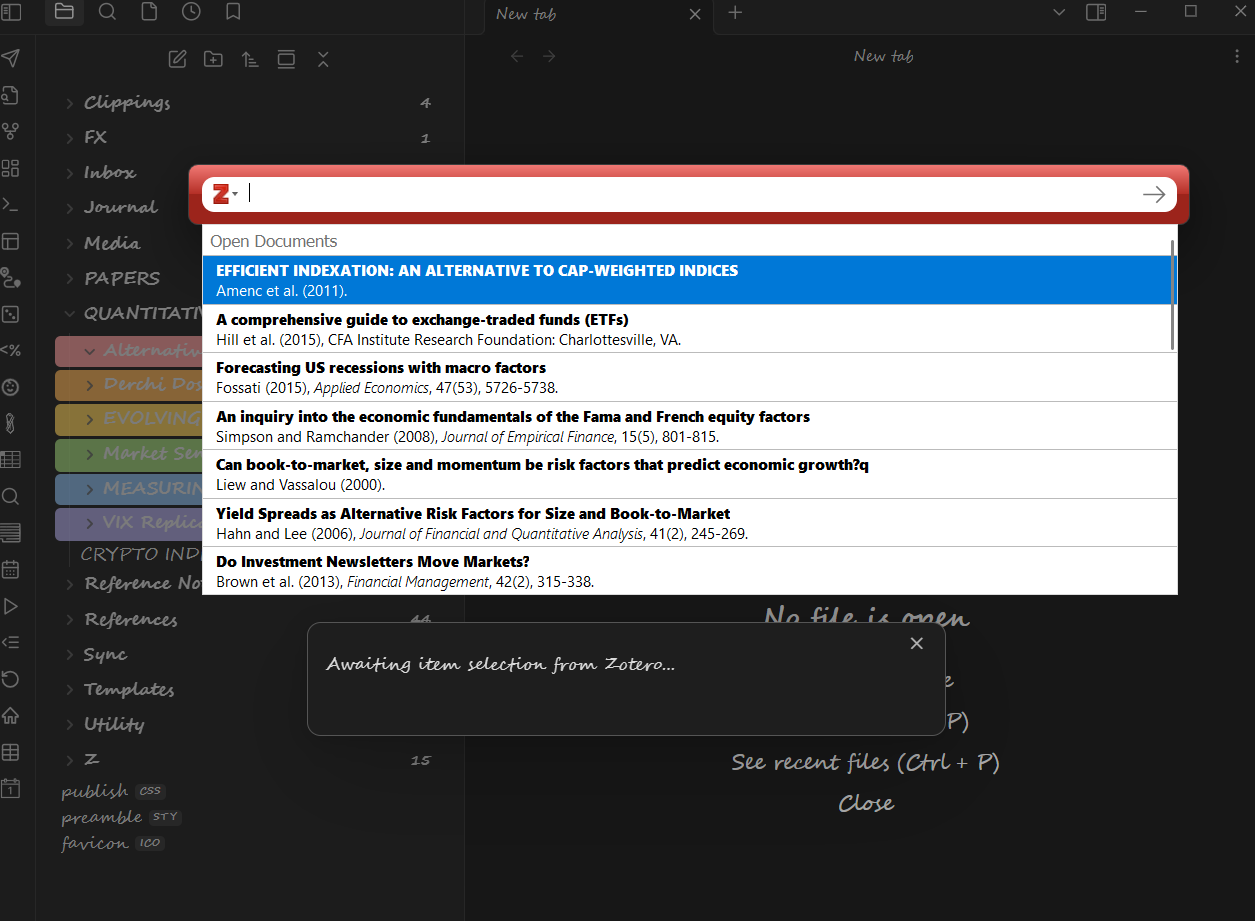
And you will get all your annotations and notes from the chosen citation.
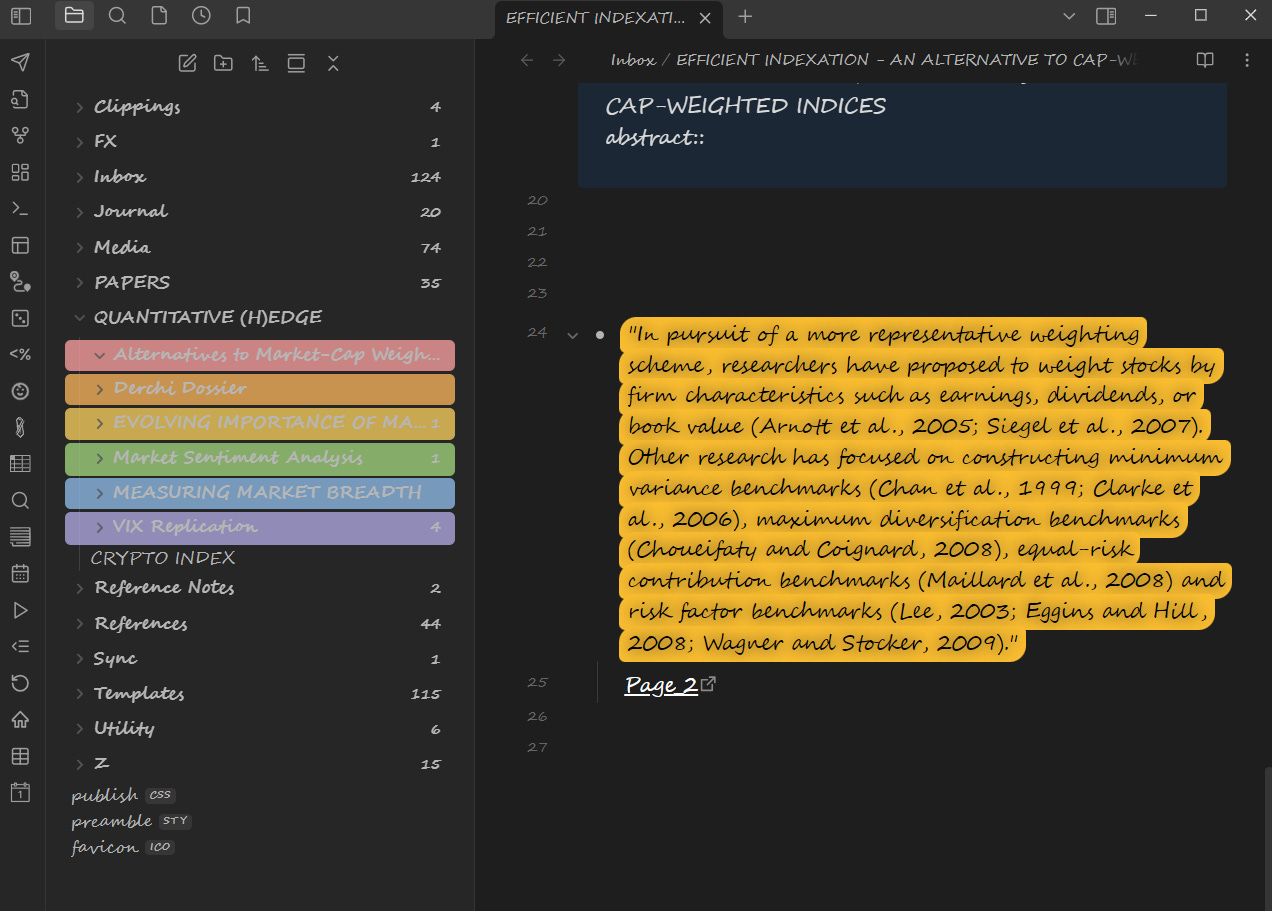
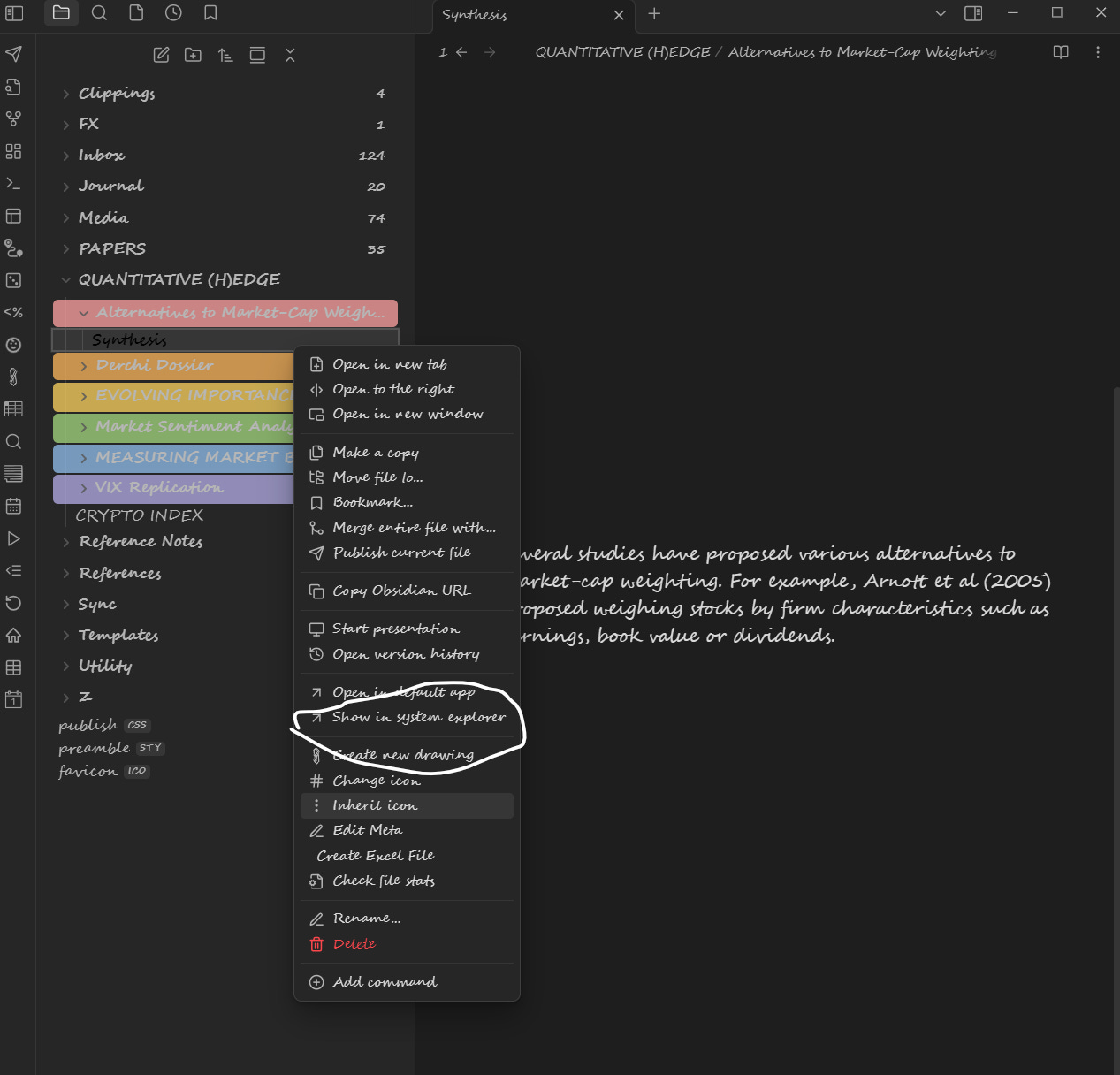
You can then open as many as you need to write down your thoughts. Once you are done, you can open up the synthesis in Typora and save to word. To do this, right-click the synthesis and click on ‘Show in system explorer’ as shown below.
Then right-click again and open in Typora.
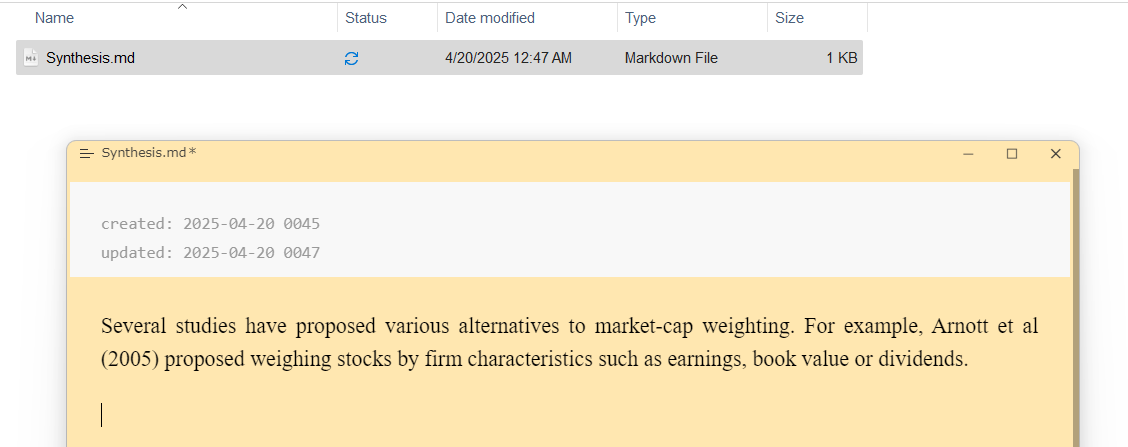
From the Typora menu you can export to Word
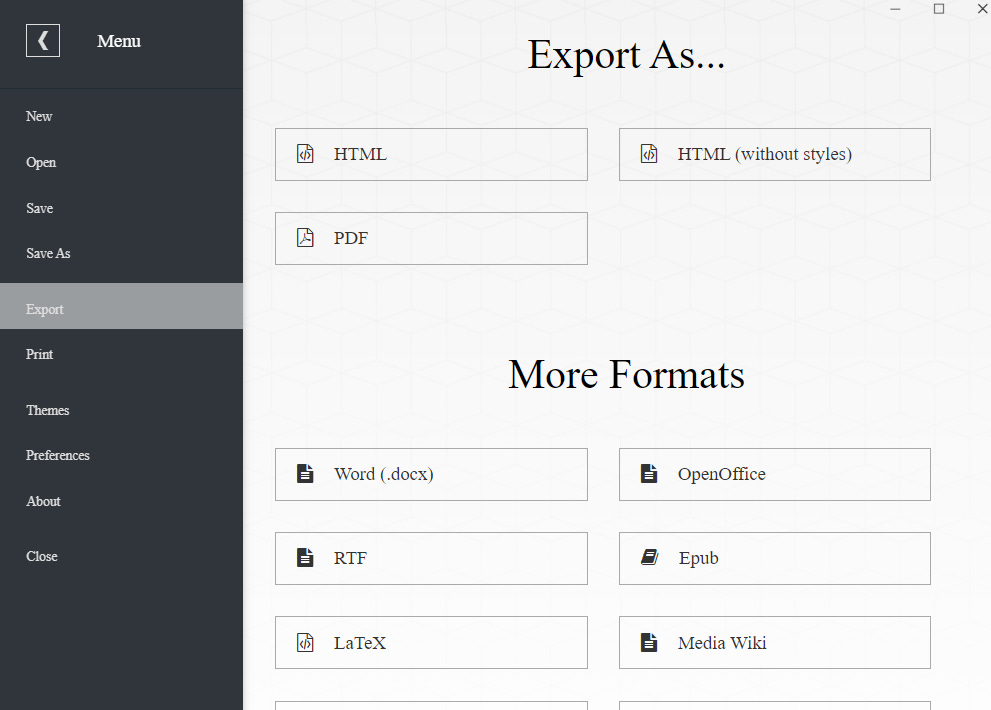
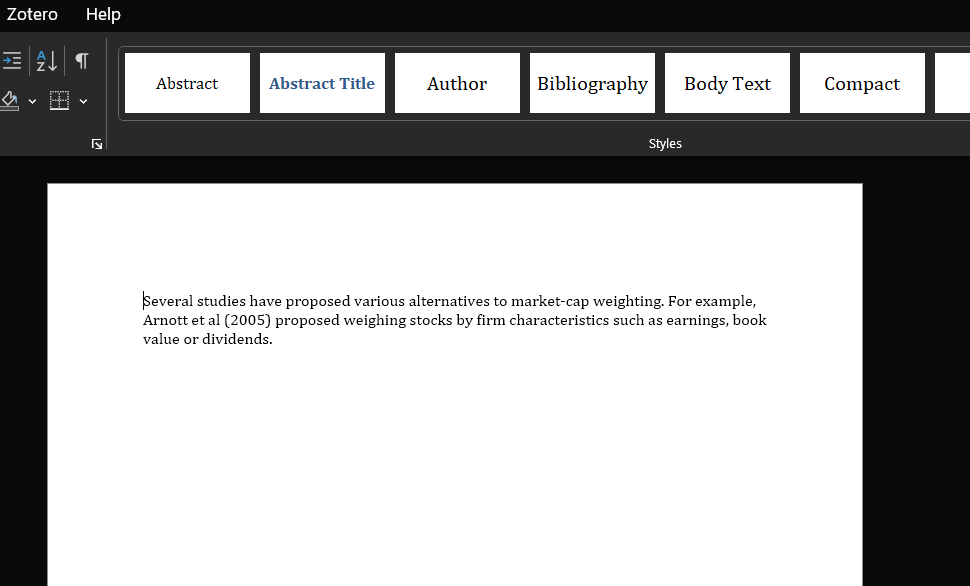
Typora is great because you can also write markdown which helps if your work has lots of formulas.
The only downside to this is that Zotero won’t pick up your citations automatically so you will have to insert them to the document again using the Zotero Word plugin.
Synthesizing information from various sources is often the hardest part of writing a technical paper, so this process really speeds things up.
Pro-tips:
If you do not have time and/or don’t feel like reading so many papers. You can upload then to google’s notebooklm and then ask it some questions and it will retrieve the necessary information from the uploaded papers. I often use it to decide which papers are worth reading in their entirety.
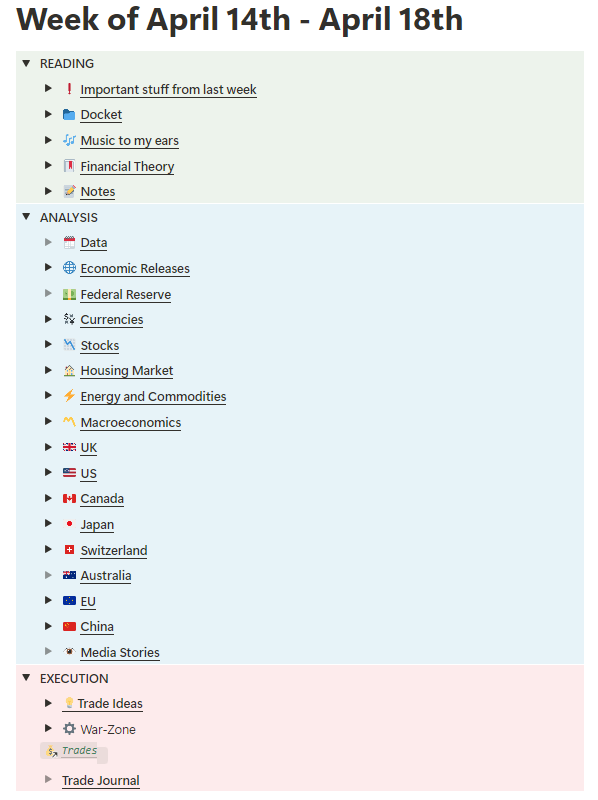
Another tool that is useful for synthesizing research is Notion. I use it as my daily driver for market research, which I then compile into the weekly market report, and use for trading ideas. It prefer Obsidian because of the ability to import Zotero annotations, but I find writing in Notion much nicer.
Step 5: Edit Your Manuscript
Scholars often get criticized for writing stale and boring papers which make reading them a chore. The first place you want to go to do your editing is grammarly. It quickly checks your grammar and suggests edits that correct spelling mistakes and grammatical errors. But, be careful not to automatically go with all of its suggestions as some of them make the writing a bit bland. Still, it at least gets the obvious errors out of the way.
The rest of the editing is up to you to decide how you want to write your paper. There are some things I have learnt over the years that make technical writing more lively. I’ll share two things.
Write in present tense.
Don’t write ‘This study examined the role of volatility…’, write, ‘This study examines the role of volatility…’
Turn nouns into verbs
Instead of ‘This study examines the role of volatility…’ write ‘This study examines volatility’s role…’
This kind of writing makes the paper more vivid. Basically, try as much as possible to turn the subject of the study into the noun and then everything else into verbs, adverbs, etc.
This covers the basics of getting any technical writing done as fast as possible. Some other tips to make work more enjoyable are:
Write whichever section you feel are in the mood to write. A lot of people think you have to start from the beginning and then work your way to the end, but if you get stuck somewhere you can derail progress. It is better to just write whichever section excites you at the moment. If you format your manuscript at the start, you can identify a section that arouses your curiosity any time you open the doc.
Try and write every day. If you try to cram the writing into blocks where you think you will get a lot done, you may feel overwhelmed when it comes time to write. It is better to keep reading and writing everyday.
Save all the editing until the manuscript is done. Editing can discourage you if you find too many mistakes, also, it is easy to turn editing into a way to procrastinate actual writing. You will lie to yourself that you are being productive when you are really not making any progress.
If you don’t feel like you are in the mood to write, try ‘junebugging’. A june bug is the bug that is attracted to lights, especially artificial lights and often rams into lightbulbs, lightshades, chandeliers etc. Junebugging means putting yourself in the work environment and knocking things about until you get going. In writing it often involves starting to type out stuff until the mood/inspiration kicks in. It’s quite effective for my ADHD which brings about its own struggles initiating tasks I really don’t feel like doing.
Please share this with someone who needs it